AI Receptionist
Choosing an AI Voice
Preview voices from the library and assign the one that fits your business.
Updated 9/17/2026
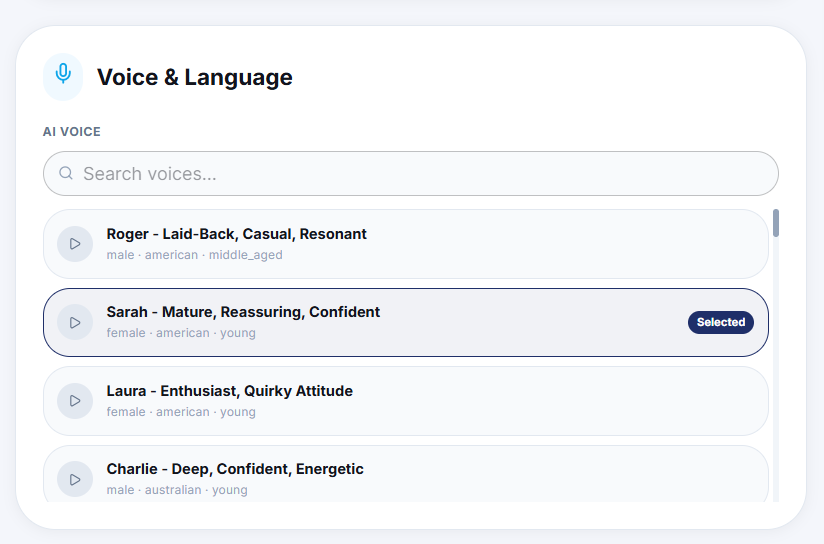
Marvic Desk offers a library of pre-built voices you can preview and assign to your AI Receptionist. 1. Go to Settings → AI Control Panel → Voice & Language. 2. Use the Search voices box to filter by name or characteristic or scroll the list. 3. Click the play icon next to a voice (for example, Roger, Sarah, Laura, or Charlie) to preview it. 4. Click a voice to select it for your AI Receptionist. Note: Until a voice is selected, the Config Preview will show "Voice: selected"