Messaging
How to Verify a Messaging Channel Connection
Run a connection check to confirm your channel is delivering messages, and reconnect it if it isn't.
Updated 9/24/2026
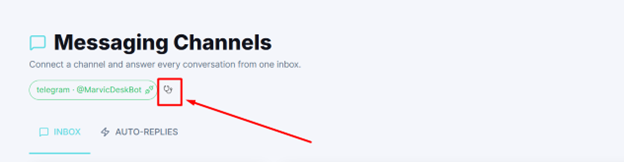
Confirm your connected channel is actually delivering messages to Marvic Desk. 1. On the Messaging Channels page, click the stethoscope icon next to the connected channel's pill. 2. The Connection check window opens. A green banner confirms, for example, "Telegram is delivering messages to this platform." 3. Review the Telegram sends to and It should send to addresses shown — these should match. 4. If they don't match, or the connection looks inactive, click Reconnect. 5. Click Close once you've confirmed the connection is healthy.
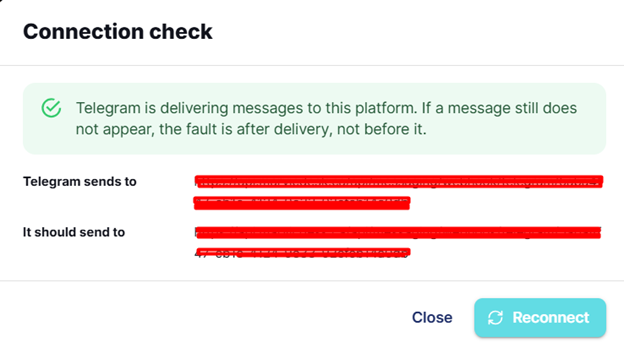
Note: If a message still doesn't appear after a healthy connection check, the platform's own guidance is that the fault is after delivery, not before it — check your Inbox tab and any filters.