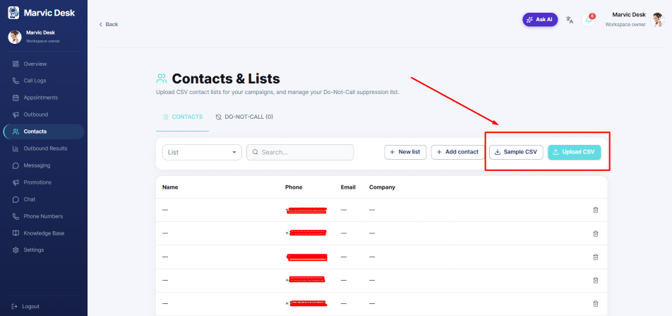
Contacts
How to Import Contacts via CSV
Upload many contacts at once and automatically create a new list from your file.
Updated 9/18/2026
Import many contacts at once using a CSV file. 1. Go to Contacts and click Sample CSV to download the template with the exact column names and phone format. 2. Fill in the template: first_name, last_name, phone, email, company. 3. Click Upload CSV and select your completed file. 4. Marvic Desk automatically creates a new list named after your uploaded file, containing all the imported contacts. Example: A file named "Spring_Promo_Leads.csv" will automatically create a list called "Spring_Promo_Leads" once uploaded.