Appointments
Connecting Google Calendar for Appointments
Connect Google Calendar so your AI can check availability and book directly onto your schedule.
Updated 9/18/2026
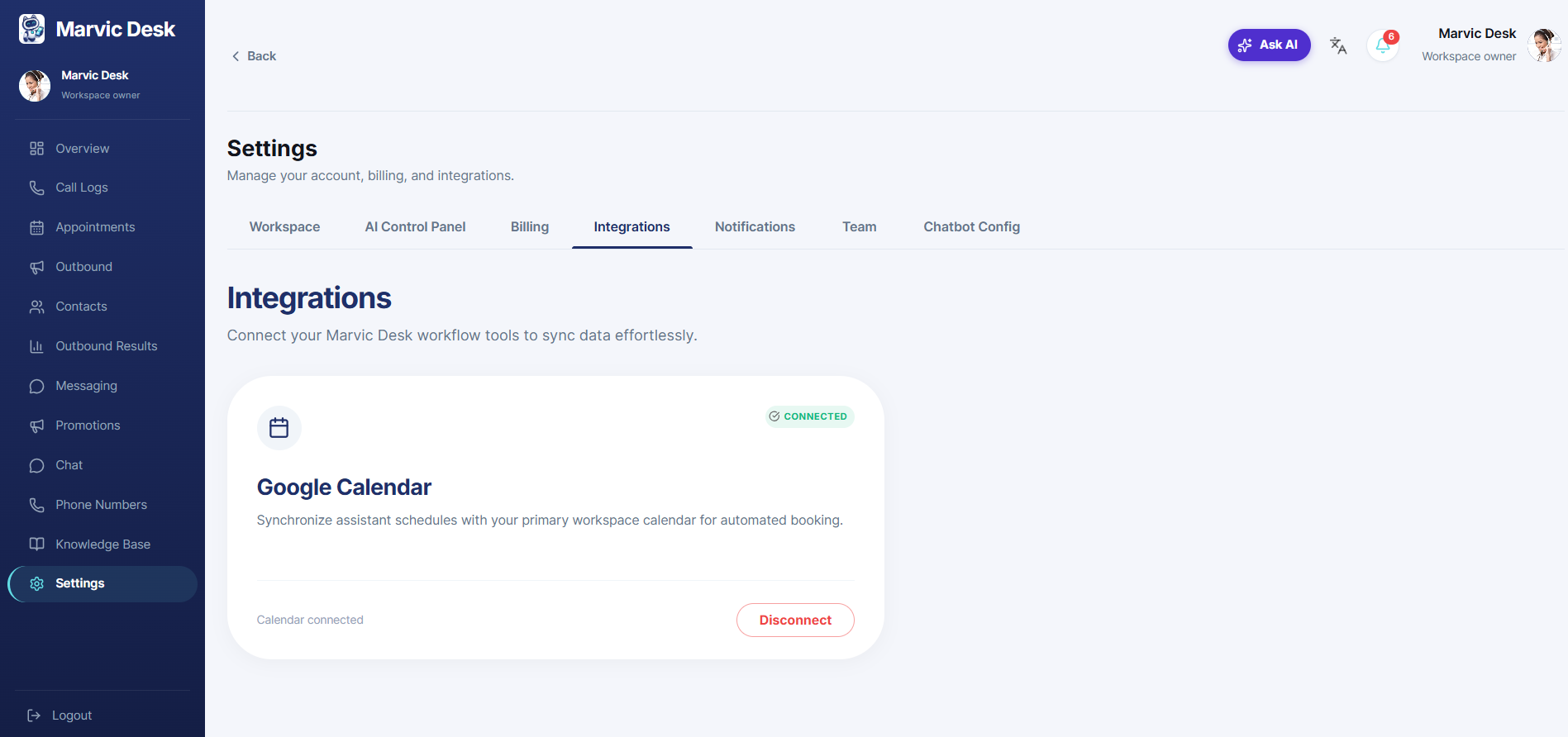
Connecting Google Calendar lets your AI Receptionist check your real availability and book directly onto your calendar. 1. Go to Settings → Integrations. 2. Find the Google Calendar card and click Connect Google Calendar. 3. Choose the Google account you want to connect. 4. If you see a "Google hasn't verified this app" screen, click Advanced, then Go to marvicdesk.ca (unsafe) to proceed — see Understanding the "Google Hasn't Verified This App" Warning. 5. Review the permissions requested and click to grant access. 6. You'll be redirected back to Marvic Desk, where the Integrations page will show Google Calendar as Connected.